
Specifiers are also able to export fixture schedules with agency permission!
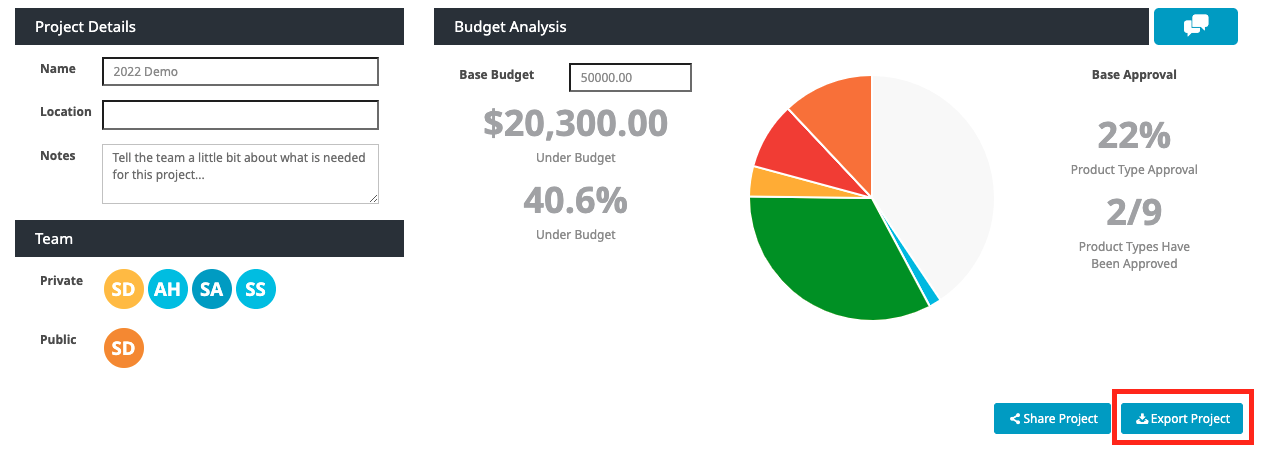
To export a project’s Fixture Schedule, start by clicking on the blue button labeled Export Project.
You will be presented with three options:
- Export as CSV – This will download directly on to your computer as a CSV file of the fixture schedule data. A modal will pop-up with several customization options, including following your custom Column Management settings. Once you make your selections, click Export and the file will download directly to your computer!
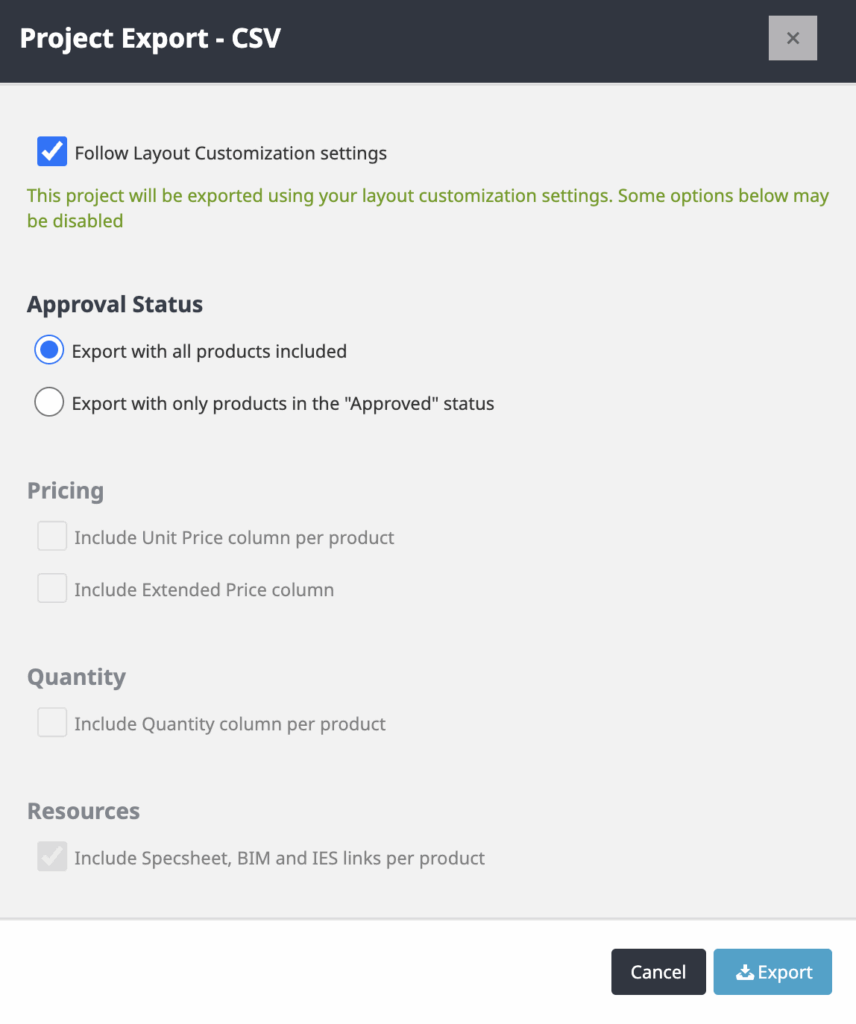
- Export as PDF – This dynamically linkable, printer-friendly option downloads as a PDF on to your computer and features product images in addition to fixture schedule data and a cover sheet. A modal will pop-up with several customization options. Once you make your selections, click Export and the file will download directly to your computer!

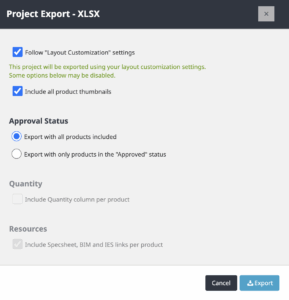
- Export as XLSX – Once downloaded, this excel format can easily be tailored to fit your needs. A modal will pop-up with several customization options, including following your custom Column Management settings. Once you make your selections, click Export and the file will download directly to your computer!
- Export for Exergent – This will download directly to your computer as a pre-formatted Excel file, allowing you to import it seamlessly into the Exergent system. For more information on Exergent, please reach out to Leslie Baty, Exergent Customer Success Manager at [email protected]